

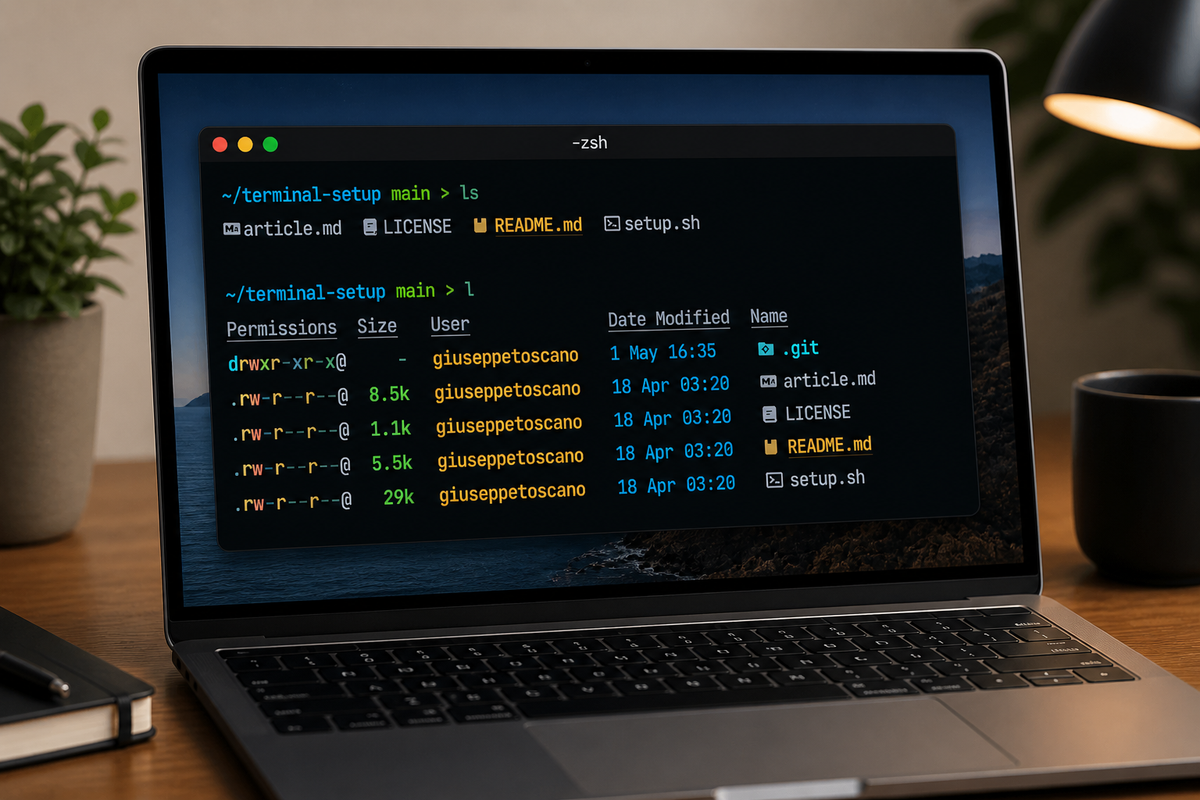
I spend most of my working day in a terminal. Pentesting, writing scripts, managing infrastructure, reviewing code — it all happens there. Over the years I've iterated through dozens of configurations, and I've finally landed on a setup that I'm genuinely happy with. This post documents it end to end, with a script that installs everything in one shot on macOS and Linux.
The Philosophy
Most terminal setups I see online are either bloated with fifty plugins nobody uses, or they're minimal to the point of being useless. I wanted something in between: fast, informative, visually clean, and actually helpful during a working session. Every tool in this stack earns its place.
The other constraint was portability. I work across macOS (main machine) and Kali Linux on aarch64 (ARM), so the setup had to work on both without me maintaining two separate configs.
The Stack
Here's the full picture before we dive in:
| Layer | Tool | Why |
|---|---|---|
| Terminal | Hyper (macOS) | GPU-accelerated, fully scriptable via JS config |
| Shell | Zsh | Best completion engine, massive ecosystem |
| Framework | Oh My Zsh | Plugin and theme management without the overhead |
| Prompt | Powerlevel10k | Fastest prompt available, async rendering |
| Font | JetBrains Mono NF | Legible, beautiful, full Nerd Font icon support |
| Autocomplete | zsh-autosuggestions | Ghost-text history completion |
| Highlighting | zsh-syntax-highlighting | Real-time command validation |
| Fuzzy finder | fzf | Ctrl+R that actually works, plus file picker |
| Directory jump | zoxide | Frecency-based cd replacement |
| File listing | eza | ls with icons, git status, tree view |
| File viewer | bat | cat with syntax highlighting |
| Search | ripgrep + fd | grep and find that respect .gitignore |
| Git TUI | lazygit | Full git interface without leaving the terminal |
| Git diff | delta | Side-by-side diffs with syntax highlighting |
Hyper Terminal
On macOS I use Hyper. It's Electron-based, which gets it some flak, but the configuration experience is genuinely excellent — a single ~/.hyper.js file controls everything, and the plugin ecosystem is solid.
The three plugins I actually use:
- hypercwd — new tabs open in the same directory instead of
~. Sounds small, saves an irritating amount of time. - hyper-search —
Ctrl+Fsearch through terminal output. - hyper-pane — split panes without needing tmux.
For the color scheme I use a GitHub Dark palette. It's not the flashiest, but it's what my eyes default to after years of GitHub, and consistency between my browser and terminal reduces cognitive load more than I expected.
On Linux, Hyper is optional. I use whatever terminal the distro ships (or Kitty), and the rest of the setup is identical.
Zsh + Oh My Zsh
Zsh has been the default shell on macOS since Catalina, and it's been my choice on Linux for years. The completion engine alone — case-insensitive, menu-driven, context-aware — is reason enough to switch from bash.
Oh My Zsh handles plugin and theme management. I've tried alternatives like Zinit and Zplug, and while they're faster to load, the maintenance overhead wasn't worth it for me. Oh My Zsh just works.
The plugins I have enabled:
git, zsh-autosuggestions, zsh-syntax-highlighting, zsh-completions,
fzf, docker, docker-compose, z, extract, copypath,
colored-man-pages, command-not-found
The three most impactful are:
zsh-autosuggestions shows a grey ghost-text suggestion based on your history as you type. Hit the right arrow (or Ctrl+Space in my config) to accept. After a few days it feels like the terminal can read your mind.
zsh-syntax-highlighting colors commands in real time — green if the binary exists, red if it doesn't. You catch typos before hitting enter. It sounds minor until you're not constantly wondering why a command silently did nothing.
fzf integration replaces the default Ctrl+R history search with a fuzzy, interactive interface. It also adds Ctrl+T to fuzzy-find files and Alt+C to fuzzy-jump into directories.
Powerlevel10k
Powerlevel10k is the prompt. It renders asynchronously, meaning it never blocks your input while it's fetching git status or checking virtualenv state. The difference is noticeable the moment you clone a large repo.
The information it surfaces in my config:
- Current directory (with smart truncation)
- Git branch, staged/unstaged state, ahead/behind count
- Python virtualenv or conda environment
- Node.js version (when in a Node project)
- Last command exit code (when non-zero)
- Current time
After installing, run p10k configure to walk through the visual setup interactively. It takes two minutes and gives you a prompt that's tuned exactly to what you want to see.
JetBrains Mono Nerd Font
Nerd Fonts are patched versions of popular monospace fonts with thousands of extra icons added — the same icons that eza, Powerlevel10k, and other tools use to render file type glyphs, git branch symbols, and status indicators.
I switched to JetBrains Mono this year. It has excellent readability at small sizes, good ligature support, and the Nerd Font variant covers everything I've thrown at it. If you see boxes (□) instead of icons, your terminal font isn't set correctly — this is always the culprit.
The Modern CLI Replacements
This is where the quality-of-life improvement really compounds.
eza — better ls
alias ls='eza --icons'
alias ll='eza -lah --icons --git'
alias lt='eza --tree --icons --level=2'
eza shows file type icons, colors directories differently from files, and the --git flag adds a column showing git status per file. The tree view is genuinely useful for quickly understanding an unfamiliar project structure.
One important note for Linux users: install eza via the official apt repo, not by downloading a binary from GitHub releases. The releases page publishes pre-built binaries for specific architectures, and it's easy to accidentally install an x86_64 binary on an aarch64 machine — which gives you an exec format error and a confusing debugging session. The apt repo handles architecture automatically.
bat — better cat
alias cat='bat --paging=never'
Syntax highlighting, line numbers, and git diff markers in the gutter. The --paging=never flag keeps it behaving like cat (output inline, no pager). I also use it as the pager for man pages:
export MANPAGER="sh -c 'col -bx | bat -l man -p'"
Man pages with syntax highlighting are genuinely easier to read.
fzf — fuzzy finder
fzf is the tool I'd miss most if I had to remove one. Ctrl+R becomes an interactive search through your full history. Ctrl+T opens a fuzzy file picker that passes the selection to your current command. Combined with bat for preview:
export FZF_CTRL_T_OPTS='--preview "bat --color=always --style=numbers {}"'
Now Ctrl+T shows a syntax-highlighted preview of each file as you move through the results.
zoxide — smart cd
eval "$(zoxide init zsh)"
alias cd='z'
zoxide tracks which directories you visit and how often. After a few days of use, z proj jumps to /home/user/projects/myapp without you having to type the full path. It's the z plugin from Oh My Zsh, but implemented as a standalone binary with better performance and smarter ranking.
delta — git diff
git config --global core.pager delta
git config --global delta.side-by-side true
git config --global delta.syntax-theme "GitHub"
Every git diff, git show, and git log -p now renders with side-by-side syntax-highlighted output. If you've never used delta, the first time you run git diff after installing it is a genuine surprise.
lazygit
alias lg='lazygit'
A full TUI for git. Stage individual lines, manage branches, resolve conflicts, squash commits, view diffs — all without leaving the terminal and without typing long git commands. I use it for anything more complex than a quick git add . && git commit.
The Configuration
The complete ~/.zshrc is generated by the install script, but the key decisions worth explaining:
History is set to 100,000 entries with SHARE_HISTORY enabled — every terminal window shares the same history in real time. Combined with fzf's Ctrl+R, your full command history is always a keystroke away.
Case-insensitive completion via:
zstyle ':completion:*' matcher-list 'm:{a-zA-Z}={A-Za-z}'
Means cd desk completes to Desktop. Small thing, constant payoff.
Ctrl+Space to accept autosuggestions is more ergonomic than the right arrow when you're in flow:
bindkey '^ ' autosuggest-accept
One-Command Install
Everything above — all tools, configs, fonts, and plugins — installs with a single command:
bash <(curl -fsSL https://raw.githubusercontent.com/0x8e5afe/terminal-setup/refs/heads/main/setup.sh)The script:
- Detects your OS (macOS, Debian/Ubuntu/Kali, Arch, Fedora) and architecture (x86_64, aarch64, armhf)
- Installs the appropriate packages via the native package manager
- Backs up your existing
.zshrcbefore overwriting it - Installs Hyper and its plugins on macOS, skips it on Linux
- Downloads and registers JetBrains Mono Nerd Font
- Configures git delta globally
- Prints clear next steps at the end
After it finishes:
exec zsh        # reload the shell
p10k configure  # run the interactive prompt wizard
Then set your terminal font to JetBrainsMono Nerd Font and you're done.
Source
Everything is on GitHub: github.com/0x8e5afe/terminal-setup
The repo includes the install script, a README.md file and this article. If you hit any issues, especially on less common Linux configurations, open an issue.